



View Multiple Geofences on the Map
Quoi de neuf
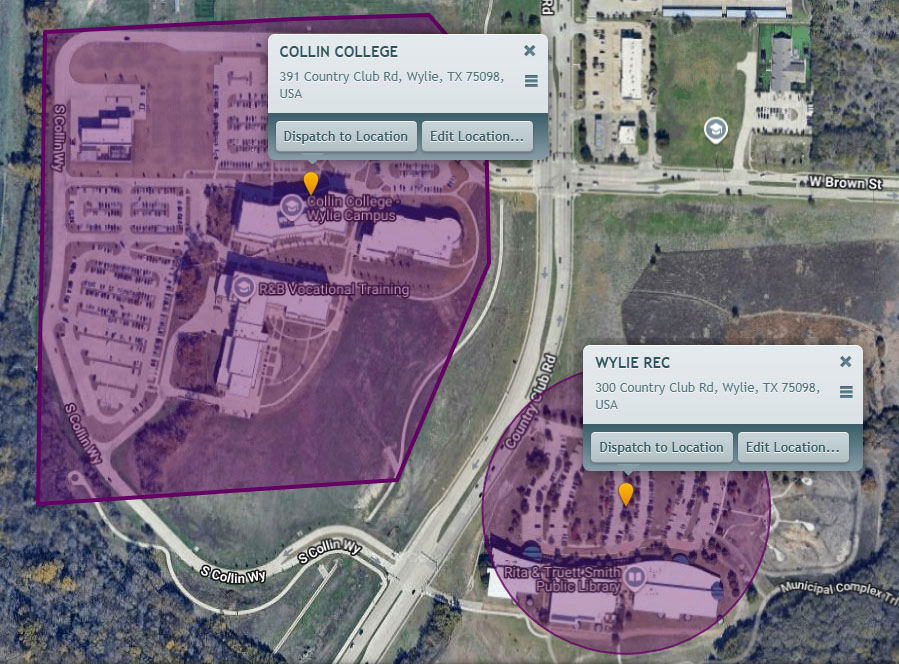
The Locations panel now lets you select several locations and display all of their geofences on the map at once. Before this change, the map could draw only one geofence at a time, and showing all locations placed pins without their boundaries.
Comment ça marche
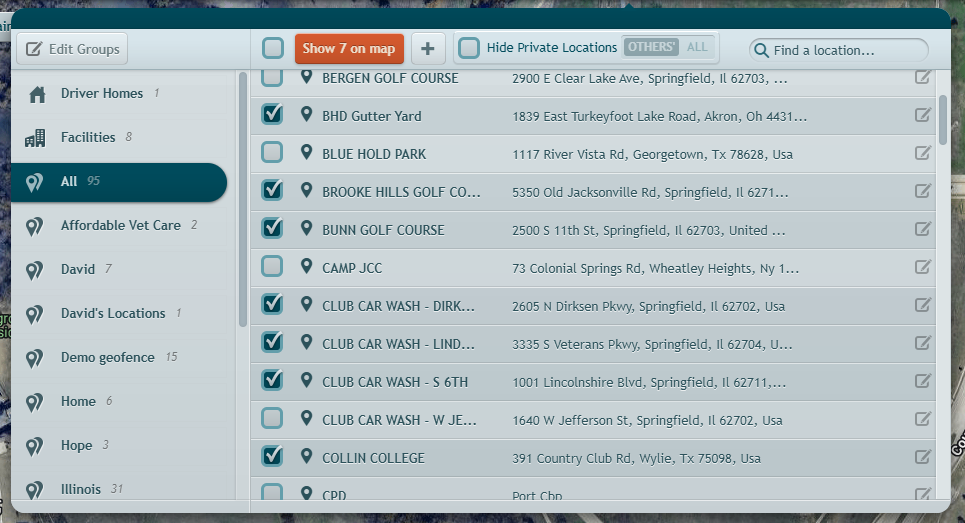
- Cliquez sur le bouton Locations icon in the header to open the Locations panel.
- Check the box next to each location you want to see. Use the checkbox in the toolbar to select every listed location at once.
- Cliquez sur Show on map. The button shows how many locations you selected — for example, Show 12 on map. The panel closes and the map zooms to fit your selection.
- Each location appears as a pin with its name. Locations with a geofence also show the boundary drawn on the map.
- Click a pin to open that location’s details card. The pin’s name label hides while the card is open and returns when you close it.
- To clear the locations from the map, click the X on the Locations button in the header.
Selecting a single location works the same as clicking its row: the map zooms to that location and opens its details card.
- If you filter the list with the search box, the button counts and shows only the locations still listed.
- For large selections, the map draws boundaries in the area you are viewing and adds more as you pan and zoom.
Qu'est-ce qui a changé
- Les Show all on map button is now Show on map and works from your selection. To show everything, use the select-all checkbox in the toolbar, then click the button.
- Location name labels now appear on location pins whether or not vehicle labels are turned on.
Exigences
- A location must have a geofence defined for a boundary to appear. Locations without one show a pin only.
- No new permissions — anyone who can open the Locations panel can use this.
Besoin d'aide ?
Soumettre un numéro
Créer un ticketQuestions générales
support@ftsgps.comAppelez-nous directement
1-866-221-1864