





Bulk Delete Alerts
Quoi de neuf
You can now delete multiple alerts at once from the Alerts & Notifications settings. Each alert row has a checkbox, so you can select any number of alerts within an alert type and remove them in a single action instead of deleting them one at a time.
Comment ça marche
- Navigate to Settings > Alerts & Notifications and expand an alert type to show its active alerts.
- Check the box on each alert you want to delete, or use the checkbox in the header row to select all of them at once. A bar appears below the list showing how many alerts are selected.
- Click Delete selected. A confirmation prompt shows the number of alerts about to be deleted.
- Confirm the deletion. The selected alerts are removed from the list, and a notification confirms how many were deleted. If any alert could not be deleted, the notification reports how many failed so you can try again.
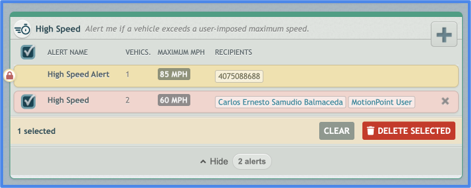
To start over, click Clear in the selection bar to deselect everything. Selections are kept per alert type, so collapsing a section and coming back does not lose them.
Besoin d'aide ?
Soumettre un numéro
Créer un ticketQuestions générales
support@ftsgps.comAppelez-nous directement
1-866-221-1864