





How to Complete a Pre- and Post-Trip DVIR (including Viewing Historical DVIRs)
Attention! To complete a DVIR, you must be ON DUTY. If you are not ON DUTY at this point, you will be required to change duty status.
- From the home page, open the menu icon (Top Left) and select New DVIR.
- Specify if this is a pre- or post-trip DVIR.
- Select the inspection report from the options available (some customers have multiple custom DVIR reports).
- Inspect the vehicle using the checklist provided form the selected report.
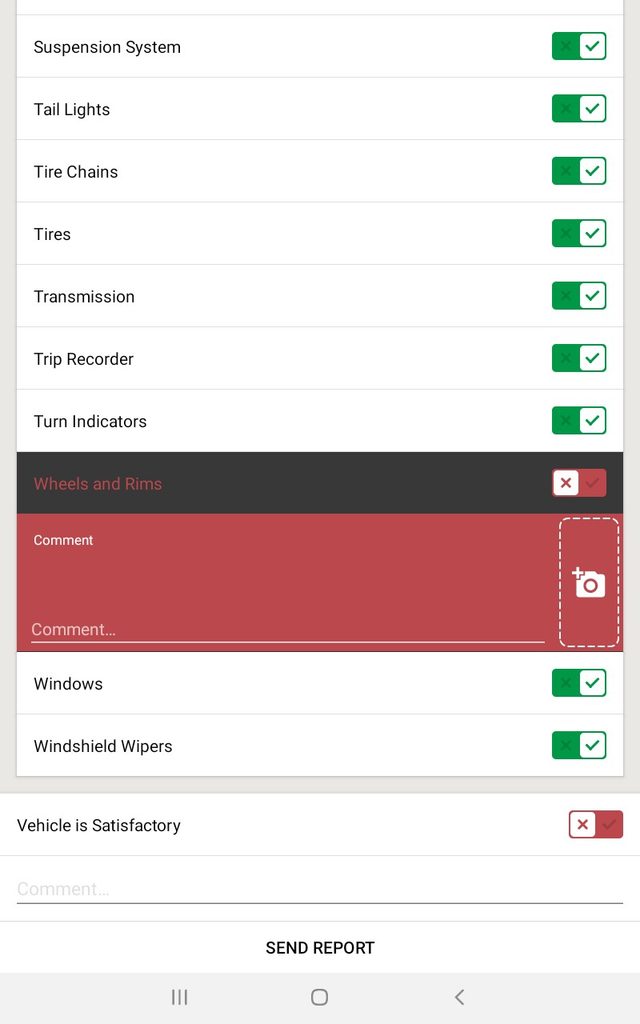
- If there are no issues, leave all check boxes as green and select send report (Bottom of Report).
- If there are actions required on a certain field on the report, then select the X (Derecha) on the correct field.
- Add a comment and attach a photo by selecting the camera icon in the red box (Derecha).
- Mark if the vehicle is satisfactory or not from the last field on the report.
- Add a comment if needed.
- Select send report.
If you would like to review the last DVIR completed:
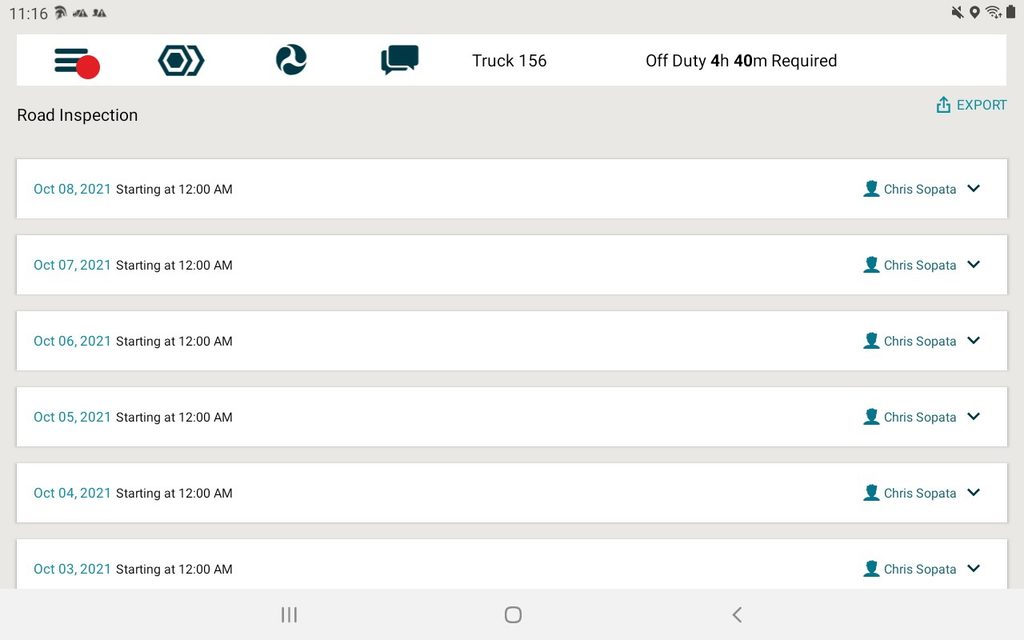
- From the home page, open the menu icon (Top Left) and select View Last DVIR.
- Select the DVIR you would like to view.
- Now in this DVIR you can review and edit data.
¿Necesita más ayuda?
Enviar un número
Crear billeteCuestiones generales
support@ftsgps.comLlámenos directamente
1-866-221-1864