




Filter Vehicles and Activity Views in IntelliHub
What’s New
The Main Vehicles List and Full Activity now include filter controls that let you hide vehicles, blips, and events you don’t want to see. Both views support saved per-user defaults so your preferred view loads automatically on every session.
Filter Vehicles by Activity (Main Vehicles List)
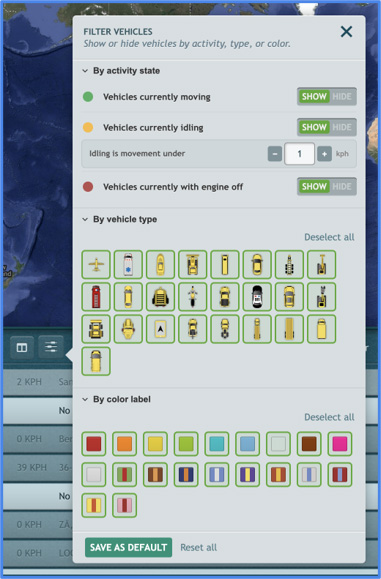
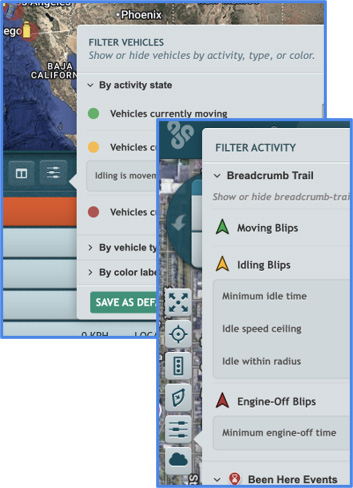
The Filter vehicles by activity button sits above the Main Vehicles List, next to the updated Edit & sort columns button and the search field. The panel filters the list and the map together along three independent dimensions:
- Activity: show or hide vehicles that are moving, idling, or have their engines off. A speed knob defines what counts as idling versus moving.
- Vehicle Icon: show or hide vehicles by icon. Every icon your company uses appears in a grid; click any icon to hide it.
- Vehicle Color: show or hide vehicles by color label.
A vehicle stays visible only when it passes every active filte
Activity Halos
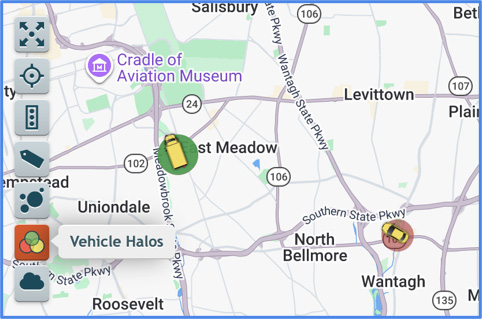
Each vehicle icon on the map now displays a colored ring around it: its activity halo:
- Green: moving
- Amber: idling
- Red: engine off
The halo updates as soon as the vehicle’s state changes.
Toggle Halos: Click the Vehicle Halos button to hide halos when not needed.
Filter Activity (Full Activity)
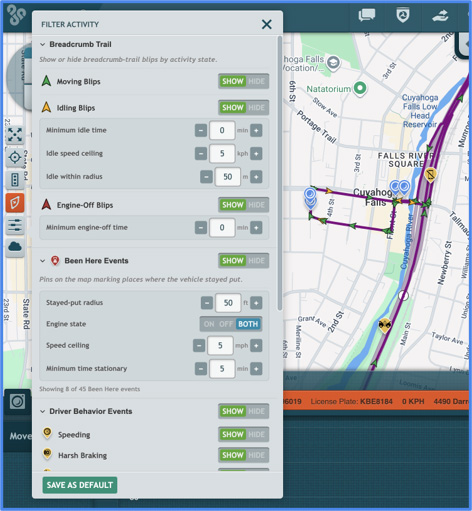
A new Filter Activity button in the Full Activity view opens a panel that controls the breadcrumb trail and the events shown on the map for that day.
Colored chevron blips on the breadcrumb trail. Each blip on the trail is now color-coded by what the vehicle was doing at that moment:
- Green: moving
- Amber: idling
- Red: engine off
Each color has its own Show / Hide toggle. Idling and engine-off blips have additional knobs that hide short, low-signal occurrences:
- Minimum idle time: idling blips shorter than this stay hidden.
- Idle speed ceiling: the speed below which a blip counts as idling.
- Idle within radius: how far the vehicle can drift and still count as one continuous idle.
- Minimum engine-off time: engine-off blips shorter than this stay hidden.
Been Here Events. Marks places on the map where the vehicle stayed put. Four knobs define what qualifies:
- Stayed-put radius: the distance the vehicle can move and still count as stationary.
- Engine state: whether to count time with the engine on, off, or both.
- Speed ceiling: slow movement below this speed (such as brief repositioning) still counts as stationary.
- Minimum time stationary: stops shorter than this stay hidden.
Click a Been Here pin to see the start time, end time, total duration, and a breakdown of time spent idling, with engine off, and repositioning.
Driver behavior, safety, and camera events. Each event type: Speeding, Harsh Braking, Hard Acceleration, Hard Cornering, Seatbelt, Forward Collision, Lane Departure, Drowsiness, Cell Phone, Distraction, Smoking, Snapshots, Time-Lapse, Saved Videos: has its own Show / Hide toggle. A category-level toggle flips an entire group at once.
Save as Default and Reset All
Both filter panels include Save as Default and Reset all buttons at the bottom.
- Save as Default records your current filter settings as your personal default. The next time the panel opens: on any vehicle, any day: your defaults load automatically.
- Reset all returns every control to your saved defaults. If you haven’t saved any, every control returns to factory settings (everything visible, all thresholds at zero).
Defaults are per user. Your defaults customize your view only; they don’t affect anyone else, and no one else’s defaults affect yours.
How It Works
Filter the Main Vehicles List
- Click Filter vehicles by activity above the Main Vehicles List.
- In each section: Activity, Vehicle Icon, Vehicle Color: toggle Show / Hide or click items in the grid to remove them from view
- The list and the map update immediately.
- Click Save as Default to preserve the view for future sessions.
- Click Reset all at any time to return to your saved defaults.
Filter a Trip in Full Activity
- Open Full Activity from a vehicle row in the Main Vehicles List.
- Click Filter Activity to open the panel.
- Use Show / Hide on each blip color, event type, and Been Here Events to control what appears on the trail and on the map.
- Adjust the knobs under each section to set the thresholds that qualify a blip or a Been Here event. Hover any row to read a tooltip describing what it controls.
- Click Save as Default to keep these settings on future trips.
- Click Reset all to return to your saved defaults.
Need more help?