





Filter Vehicles by Location
What’s New
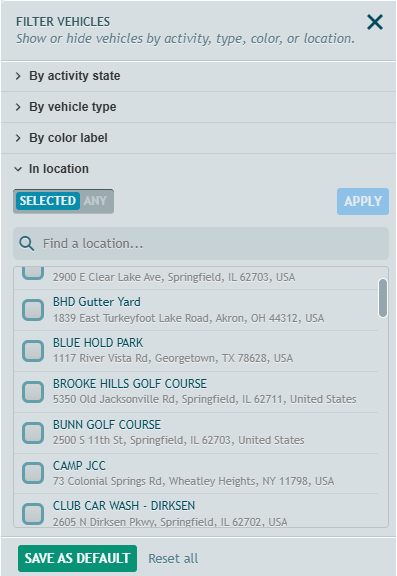
You can now filter the Main Vehicles List to show only the vehicles currently inside your saved locations. Pick one or more specific locations, or show every vehicle inside any location. A vehicle counts as inside when its current position is within the location’s geofence boundary.
How It Works
- On the Main Vehicles List, click Filter.
- Scroll to the In location section and expand it.
- Choose a mode:
- Selected shows vehicles inside the locations you check.
- Any shows vehicles inside any of your saved locations. Vehicles outside every location are hidden, and the location list collapses because no selection is needed.
- In Selected mode, check the locations you want. To narrow the list, type in Find a location… to search by location name or address.
- Click Apply. The Main Vehicles List updates to show only the matching vehicles.
- Multiple locations: checking more than one location shows the vehicles inside any of them.
- Clear selection unchecks every location at once.
- Loading: a spinner shows while the system checks which vehicles are inside your locations. On accounts with many locations, this can take a few seconds.
- Filter count: the location filter counts as one filter on the Filter badge, no matter how many locations you check.
- Save as Default keeps your location selection and mode the next time you sign in. Reset all returns to your saved default.
- Switching groups: your location selection stays in place when you change groups in the Group Selector. The list updates to show the new group’s vehicles inside those locations.
- If the check fails: a Location Filter Unavailable message appears, and the list shows all vehicles. Click Retry to run the check again.
Requirements
- Your company needs at least one saved location. To add a location, click Locations in the header.
- Vehicles without a current GPS position don’t appear in the filtered results.
Need more help?