





Camera Health Report Shows Vehicle Group Membership
What’s New
When you dismiss a driver behavior event, you must now provide a reason for the dismissal. This helps maintain accurate records and ensures all dismissals are properly documented.
How It Works
- Go to the FleetCam (or Camera Dashboard).
- In the vehicles sidebar, locate the vehicle you want to check.
- Click the health icon next to the vehicle name.
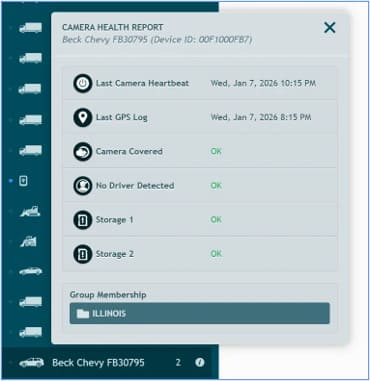
The Camera Health Report popup opens, showing all camera health data plus a new Group Membership section at the bottom. This section lists all groups the vehicle belongs to (based on your access permissions).
What Changed
- Camera Health Reports now include a Group Membership section
- You can see which groups a vehicle belongs to without leaving the health report
- All existing health data remains unchanged
Need more help?