





Detailed Dwell Time Information on Breadcrumb Trail
What’s New
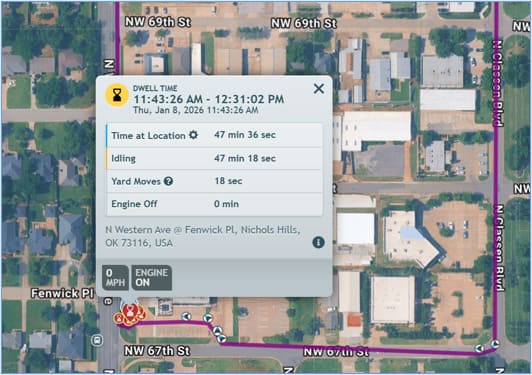
Vehicle stoppages on the breadcrumb trail now display detailed dwell time information. Dwell time refers to any period when a vehicle comes to a standstill for at least 1 minute. The previous stop sign icons have been replaced with new dwell time markers that show exactly how long your vehicle was at a standstill and what it was doing.s a Name and a URL. The Name is what end users see in IntelliHub. The URL is where they go when they click it.
How It Works
- Select any vehicle from the Main Vehicles List.
- Open the hamburger menu and select Full Activity.
- Look for dwell time icons on the breadcrumb trail (appears when a vehicle comes to a standstill for at least 1 minute).
Understanding Dwell Time Icons
The map shows three types of dwell time markers:

Red marker with hourglass:
Vehicle came to a standstill for at least 1 minute without idling.

Red marker with hourglass and power icon:
Vehicle came to a standstill for at least 1 minute AND idled with the engine running for at least 1 minute.

Small round marker with hourglass:
Individual GPS readings captured during the dwell time
Viewing Dwell Time Details
Click any red dwell time marker to see:
- Time at Location: Total duration of the dwell time
- Idling: How much time the engine was running while stopped
- Yard Moves: How much time the vehicle moved slowly (less than 200ft, under 5 mph)
- Engine Off: How much time the engine was off
When you click a marker, it highlights along with all the small round markers from that same dwell time, showing you every GPS reading from that stoppage period.
What Changed
- Stop sign icons replaced with hourglass dwell time icons
- Icons now indicate whether the vehicle idled during the dwell time
- Dwell time details show a time breakdown for idling, engine off, and slow movements
- Clicking a dwell time marker highlights all related GPS readings
- Previous information (location address, speed, ECU data) is still available
Need more help?