





Follow Moving Vehicles
What’s New
The map can now keep your vehicles in view as they move. Turn on Follow Moving Vehicles, and the map follows the vehicles you’re viewing. When one of them drives out of view, the map reframes to bring it back. Zoom, pan, or select a vehicle to change which vehicles the map follows.
How It Works
- Frame the vehicles you want to follow on the map.
- Click the Follow Moving Vehicles button at the top of the map, to the right of Street View. The button turns orange when it’s on. The map doesn’t move when you turn it on.
- When a followed vehicle leaves the view, the map reframes to show your followed vehicles again.
- Click the button again to turn it off.
- What the map follows: the vehicles in view when you turn the feature on. Each time you zoom or pan, the vehicles in the new view become the ones the map follows.
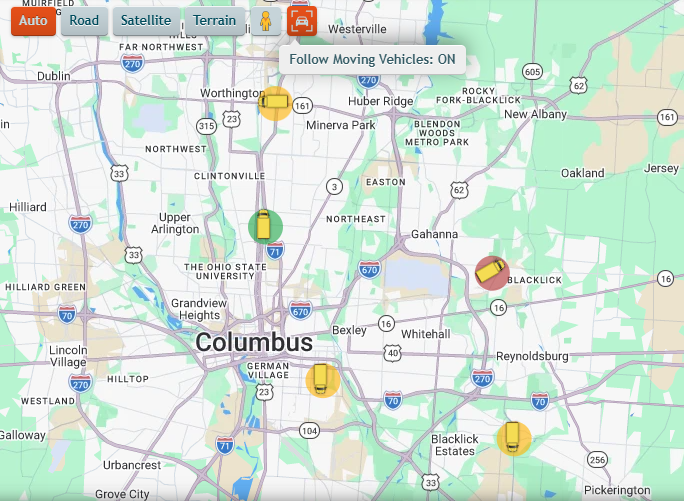
- Selecting a vehicle: select a vehicle from the Main Vehicles List, and the map zooms to it and follows it. While the feature is on, the map doesn’t re-center on the selected vehicle on every update. The vehicle card keeps updating.
- Follow every vehicle again: click Reframe Vehicles. The map fits your whole fleet and follows all of it.
- Empty areas: if you pan to an area with no vehicles, the map has nothing to follow until vehicles are in view again.
- Timing: the map reframes at its regular position refresh, so there’s a short delay between a vehicle leaving the view and the map reframing.
- While you drag: the map doesn’t reframe while you’re dragging it.
- Street View and Full Activity: the button is hidden in both. When you close Full Activity, the feature returns to the state it was in before you opened it.
Requirements
- Follow Moving Vehicles is off by default, and it turns off when you reload the page.
- The map reframes only when a followed vehicle leaves the view. Vehicles that move within the view don’t trigger a reframe.
Need more help?