





Individual Vehicle Access for IntelliHub Users
What’s New
You can now grant users access to individual vehicles directly, without granting them access to a group or facility. This provides more granular control over which vehicles specific users can view and manage in IntelliHub.
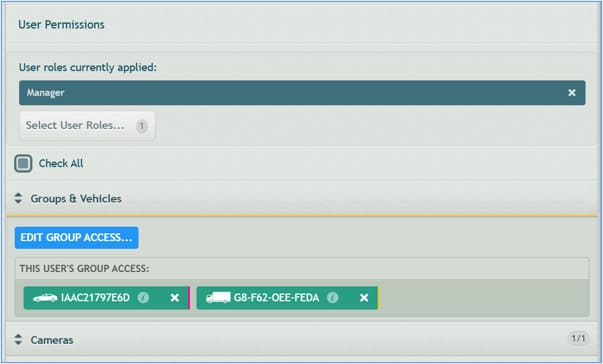
How It Works
Previously, user access required group membership—if you wanted to give someone access to a single vehicle, you had to grant access to its entire group. Now you can grant access to specific vehicles independently.
To grant individual vehicle access:
- Go to Settings (gear icon) > IntelliHub Users.
- Select the user account you want to configure.
- Under User Permissions > Groups & Vehicles, select individual vehicles without selecting any groups.
- Click Save.
The user’s IntelliHub interface displays only the vehicles they’ve been granted access to. If a user has access only to individual vehicles (with no group access), the Group Selector in the top left of the main screen displays only “All” as the available option.
Key behaviors:
- Main Vehicles List: Shows only the vehicles the user has access to
- Group Selector: Displays “All” when no groups are granted
- Alerts: You can create alerts for individually granted vehicles
- Reports: Group-based reports use “All” as the only available group option and include the accessible vehicles
Requirements
- Administrator access to IntelliHub Settings
- Active user accounts with appropriate permission levels
Need more help?