


Measure Distance on the Map
What’s New
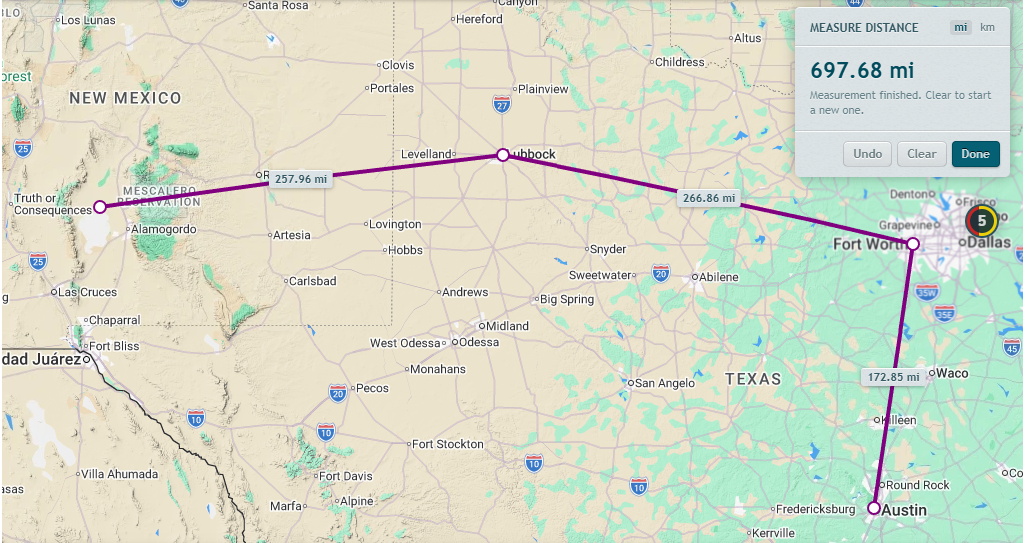
You can now measure the distance between two or more points on the map. Right-click the map to start, then click to add points. The map shows the length of each segment and a running total. Distances are straight-line, the same as the Google Maps ruler, not driving distance along roads.
How It Works
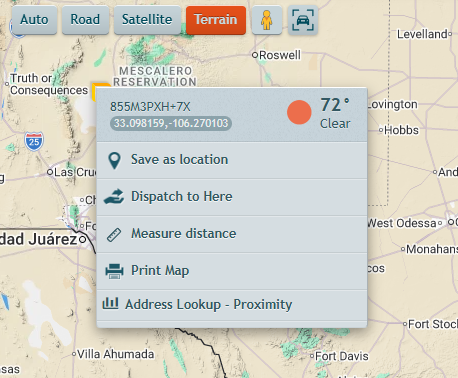
- Right-click the map where you want to start, and select Measure distance. A point drops at that spot, the cursor changes to a crosshair, and the Measure Distance panel opens.
- Click the map to add points. A dashed line follows your cursor from the last point. Each click adds a segment with its own distance label, and the panel shows the total.
- Double-click to finish the measurement. The line and labels stay on the map.
- Click Done or press Escape to close the tool. The line, points, and labels are removed.
- Measure to a vehicle: while the tool is on, click a vehicle to add a point at its current position. The vehicle card doesn’t open while you’re measuring.
- Move a point: drag it. The line, segment labels, and total update as you drag.
- Remove a point: click it.
- Undo removes the last point. Clear removes every point and keeps the tool on, so you can start a new measurement.
- Units: the ruler uses the distance unit in Settings > My Preferences. Use the mi / km switch in the panel to change units for the current session. Short distances show in feet (under a quarter mile) or meters (under one kilometer).
- What keeps the measurement: it stays on the map while vehicles refresh, when you change the map type, and when you open or close side panels.
- What clears it: opening Street View, or opening a location from the Locations panel.
Requirements
- The ruler measures straight-line distance between points. It doesn’t follow roads, so it doesn’t reflect driving distance.
Need more help?