





Share Vehicle Location via LiveTracker
What’s New
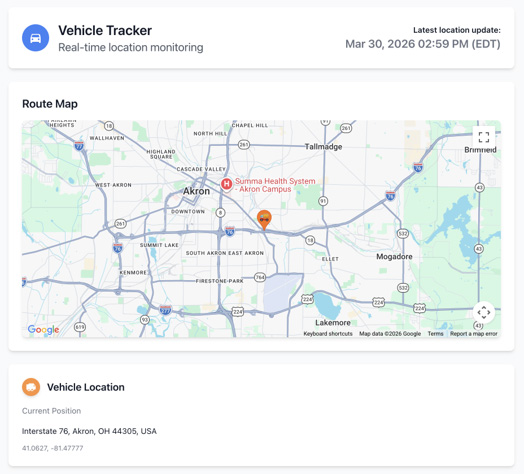
The vehicle location sharing feature has been overhauled. Shared links now open in LiveTracker, a new browser-based tracking portal where third parties — customers, partners, or anyone else without an IntelliHub account — can view a vehicle’s live position directly in their browser. Links can include an expiration date, optional password protection, and optional origin and destination addresses to provide route context alongside the live location.
How It Works
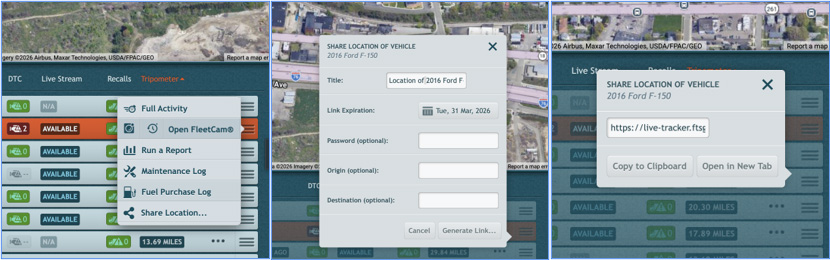
- In the Main Vehicles List, click the options menu (⋮) on a vehicle and select Share Location….
- Configure the link:
- Title — Pre-filled with the vehicle name. Edit if needed.
- Link Expiration — Set the date the link stops working. Defaults to the next day.
- Password (optional) — Require a password to view the link.
- Origin (optional) — Add a starting address.
- Destination (optional) — Add an ending address.
- Click Generate Link….
- Copy the link to your clipboard or open it in a new tab to preview it.
Send the link to your recipient. They can open it in any browser to view the vehicle’s real-time location on a map — no IntelliHub account required.
You can also access Share Location… from the options menu on the vehicle bar in Full Activity view.
Requirements
- To generate a link, your user account must have the Share Links permission enabled. An admin can enable this in Settings > IntelliHub Users.
Need more help?