





Fleet Monitor in Engage
What’s New
Engage now includes Fleet Monitor — a centralized alert dashboard that gives you real-time visibility into fleet events across all your customer accounts. Alerts that customers configure to appear in Fleet Monitor are streamed directly to this view, enabling oversight and rapid response without signing in to individual IntelliHub accounts.
How It Works
Accessing Fleet Monitor
- Sign in to Engage.
- Click Fleet Monitor in the main navigation sidebar.
The Fleet Monitor tab requires user permission. If you do not see the tab, contact your administrator.
Viewing Alerts
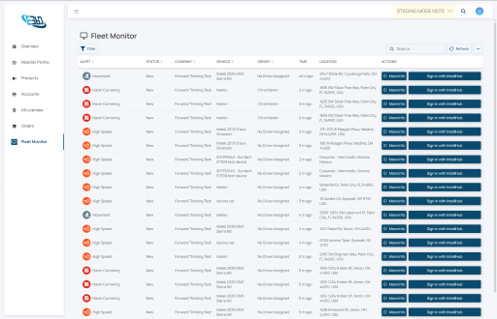
The Fleet Monitor dashboard displays alerts from all your customer accounts that have been configured to appear here. Each row shows the alert type, status, company, vehicle, driver, time, and location.
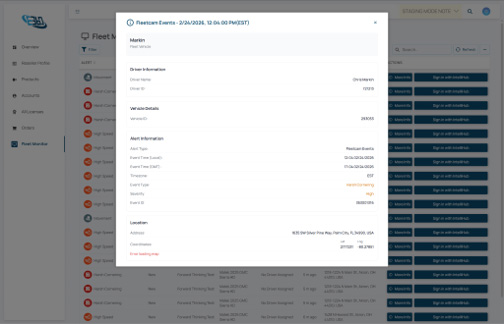
- Click More Info on any alert to open a detailed popup with full alert information — including driver details, vehicle details, alert type, event time, and a map marking the location where the event occurred.
- Click Sign in with IntelliHub to sign directly into the customer’s IntelliHub account and review the vehicle’s activity in full detail.
How Alerts Appear in Fleet Monitor
Alerts appear in Fleet Monitor only if the Show in FleetMonitor checkbox was selected during alert setup in the customer’s IntelliHub account. This can be configured by the customer or by an Engage user signed in to the customer’s IntelliHub account.
Requirements
- The Engage user must have Fleet Monitor permission enabled on their account.
- Alerts must have Show in FleetMonitor checked during setup in IntelliHub to appear in this view.
Need more help?