





Simplified Date Range Selection for Scheduled Reports
What’s New
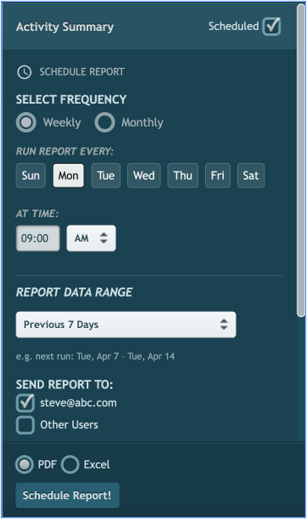
Scheduling a report with the right date range is now faster and more intuitive. The previous pair of FROM/TO dropdowns has been replaced with a single selection that lets you pick how far back the data should go — and a new confirmation card shows exactly what you scheduled.
These changes apply only to scheduled reports. Running a report manually works the same as before.
How It Works
Setting a Date Range
- Go to Reports and select a report.
- Check the Scheduled checkbox to open the scheduling options.
- Choose a date range from the single dropdown. Options include:
- Today
- Yesterday
- Previous 24 Hours
- Previous 7 Days
- This Week
- Previous 14 Days
- This Month to Date
- Last Month
- Previous 4 Weeks
- Previous 30 Days
The end date is always the day the report runs. A live preview line shows the exact dates for the next scheduled run — for example: “e.g. next run on Mon Apr 21: Apr 14 – Apr 21.”
Single-date Reports
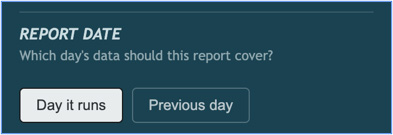
Reports that only need one date (such as Engine Off Detail) display a two-option toggle instead of the dropdown:
- Day it runs (default)
- Previous day
Comparison Reports
Reports that compare two time periods (such as Emerging Patterns Detail) use the same single dropdown. The system automatically calculates both periods. For example, selecting Previous 7 Days produces: Current: Apr 7 – Apr 14 vs. Prior: Mar 31 – Apr 7.
Confirmation Card
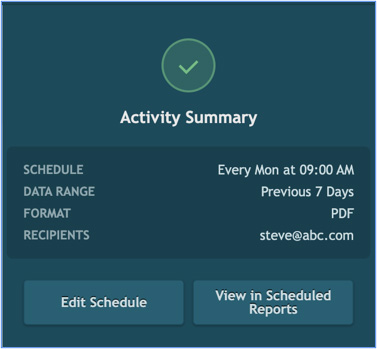
After you save a scheduled report, a summary card appears showing the report name, schedule, data range, format, and recipients. From the card, you can:
- Click Edit Schedule to reopen the form with your selections preserved.
- Click View in Scheduled Reports to go to the Scheduled Reports tab, where the new entry is highlighted.
What’s Changed
- The two FROM/TO date range dropdowns are replaced by a single dropdown with plain-English options.
- Comparison reports automatically calculate both the current and prior periods from one selection.
- Single-date reports use a clean toggle instead of a dropdown.
- A confirmation card now appears after saving, summarizing the full schedule.
- Monday is pre-selected as the default run day when entering scheduled mode.
- Existing scheduled reports are unaffected — previously saved schedules continue to run as configured.
Need more help?