





IntelliHub Notification Hub with In-App Alerts
What’s New
IntelliHub now includes a Notification Hub — an in-app alert center that delivers real-time notifications directly inside the portal. Instead of relying solely on email or SMS, you can now add IntelliHub users as alert recipients. Alerts appear in a dedicated panel within IntelliHub, giving your team immediate visibility into fleet events without leaving the platform.
How It Works
Setting Up Alerts with IntelliHub Recipients
Alert setup follows the same workflow you’re familiar with. When creating or editing an alert in Settings > Alerts & Notifications:
- Select the alert type and configure your parameters, groups, vehicles, or drivers as usual.
- In the recipients section, add IntelliHub users in addition to (or instead of) email addresses and SMS numbers. Administrators can select any IntelliHub user as a recipient. Standard users can add themselves as a recipient.
- (Optional) Check Response Required to make the alert persistent — it displays over other IntelliHub content and cannot be dismissed until a user submits a written acknowledgment.
- (Optional) If your account includes partner monitoring services, check Show in FleetMonitor to route generated alerts to the monitoring dashboard for oversight.
Viewing Alerts in the Notification Hub
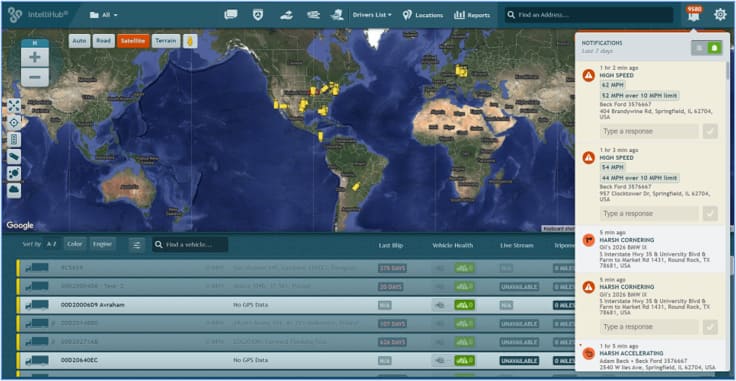
As alerts are generated, each designated IntelliHub recipient sees a red badge on the bell icon in the top-right corner of the header bar. The badge displays the total count of unread notifications.
- Click the bell icon to open the Notification Hub panel on the right side of the screen.
- The panel displays all alerts you are a recipient for from the last 7 days.
- Each alert shows the alert type, vehicle name, driver, location, and the activity details that triggered it.
- Click any alert to jump to that vehicle’s Full Activity view for the date and time of the event. If a specific data element is available — such as a point on the breadcrumb trail or a FleetCam driver behavior event — IntelliHub navigates directly to and highlights that element.
Muting Notifications
Use the mute toggle at the top of the Notification Hub panel to pause incoming alert notifications. While muted, regular alerts are silenced. Response Required alerts continue to appear regardless of the mute setting.
Responding to Response Required Alerts
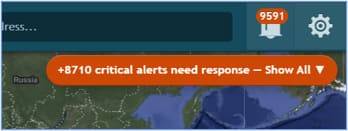
Response Required alerts appear outside the Notification Hub panel, overlaying the IntelliHub interface to ensure they receive attention. They also appear inside the Notification Hub panel when opened.
- To respond to an alert, enter text in the Type a response field and click the checkmark button. Once any user acknowledges a Response Required alert, its status updates to acknowledged for all recipients.
- If multiple Response Required alerts are on screen, you can temporarily minimize them to access the IntelliHub interface behind them.
- Click a Response Required alert to jump to the relevant vehicle’s Full Activity view, the same as with standard alerts.
What Changed
- Alert recipients: IntelliHub users can now be added as recipients when creating or editing alerts in Settings > Alerts & Notifications. Administrators can add any user; standard users can add themselves.
- Notification Hub: A new bell icon in the header bar opens a panel displaying all alerts for the current user from the last 7 days.
- Response Required Option: A new checkbox on alert setup makes notifications persistent until acknowledged with a written response.
- Partner Monitoring Integration: A new option routes alerts to the partner monitoring dashboard for accounts with this service.
Need more help?